View the Published Schedule
- From Staff Dashboard, select Published Schedule.
- Select the week you want to review.
- Switch between My Schedule and All Schedule as needed.
My Schedule
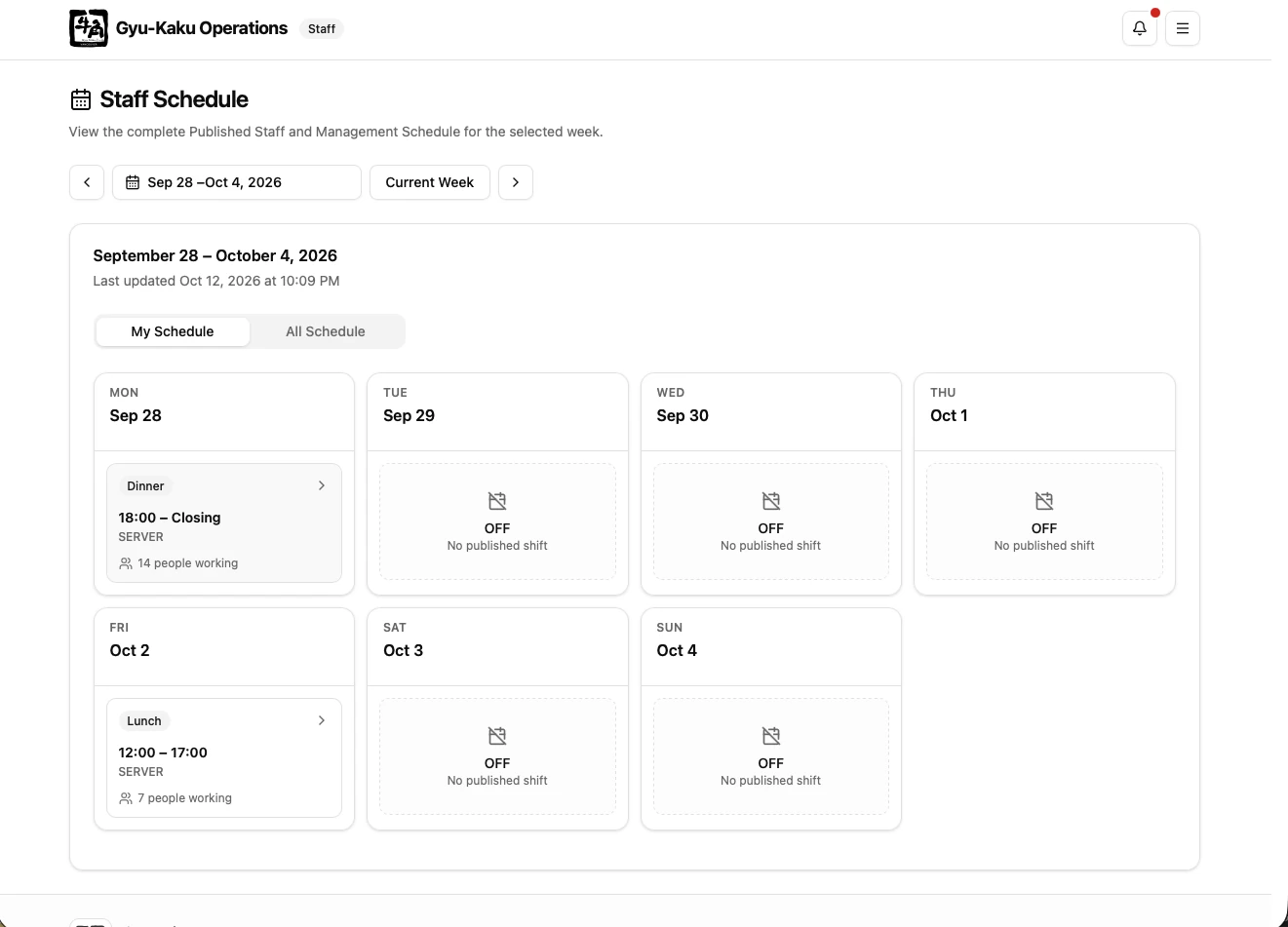
Section titled “My Schedule”My Schedule shows each day of the selected week, including working and non-working days. A scheduled shift includes its service, start and finish information, assigned role, calculated position, and Training status when applicable.
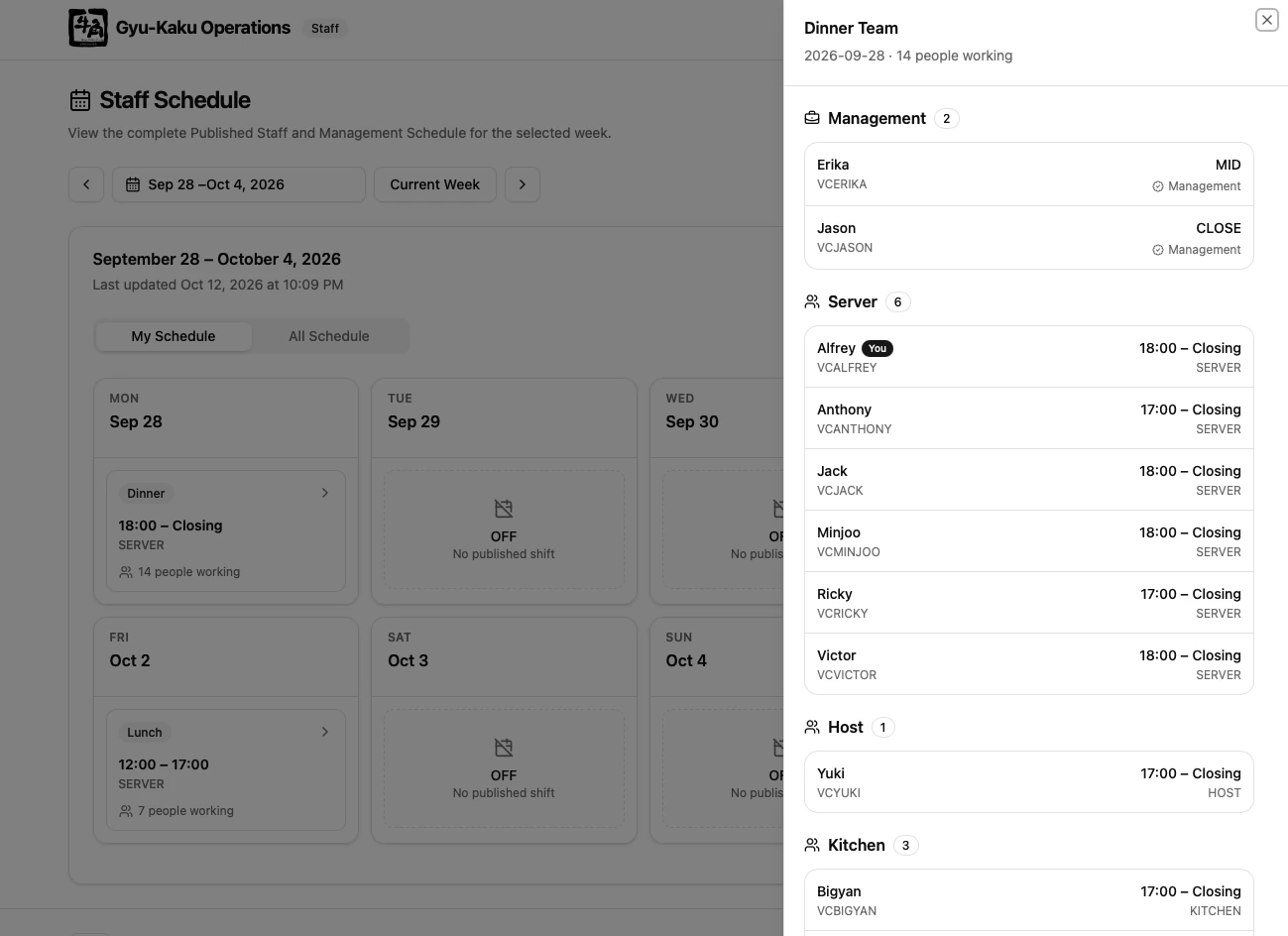
Select a working shift card to see the Staff and Management team working during the same service.
All Schedule
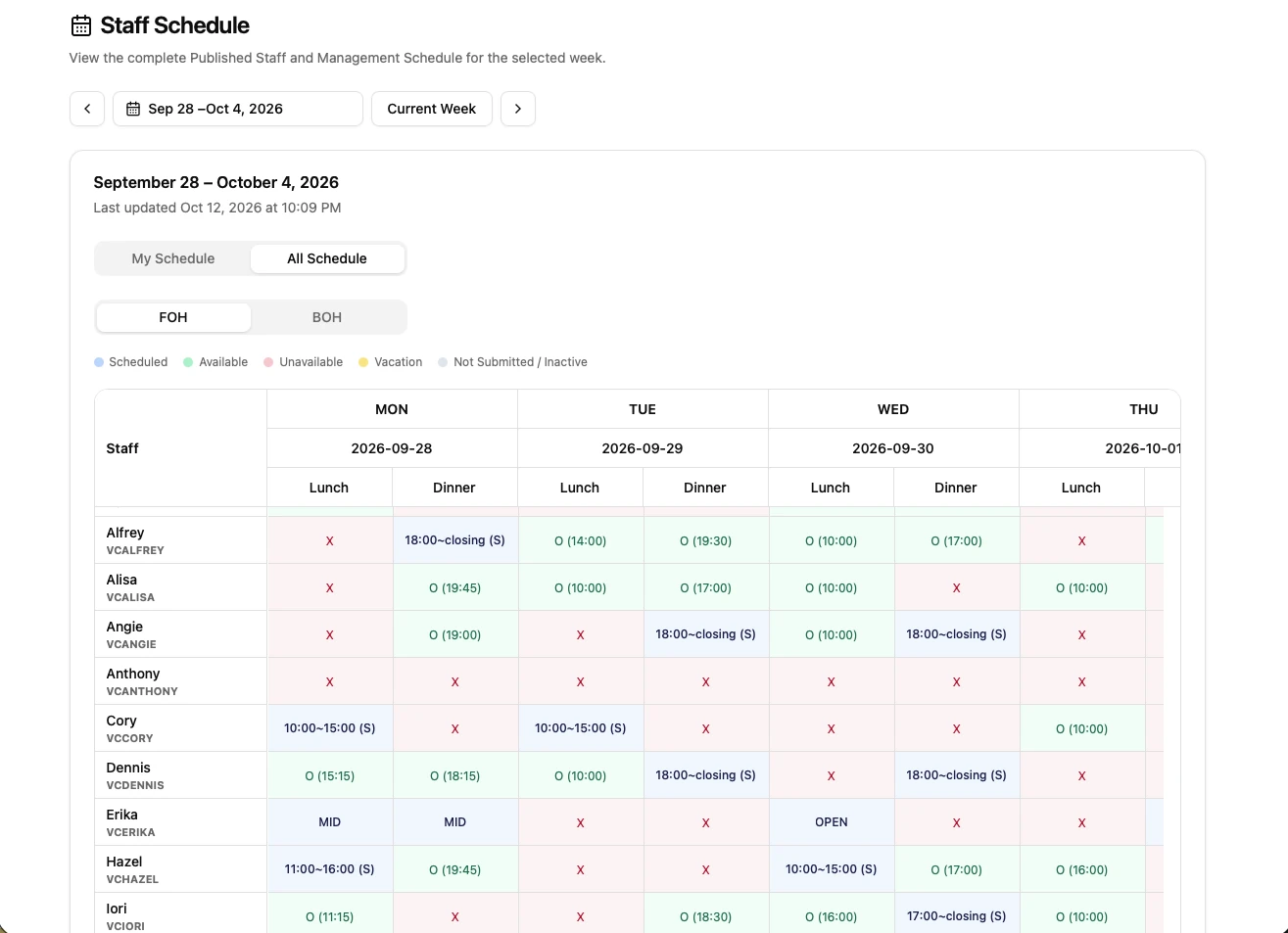
Section titled “All Schedule”All Schedule shows the complete FOH and BOH weekly table. Staff are placed using their primary scheduling role, while each assignment displays a role code:
(S)— Server(H)— Host(K)— Kitchen(D)— Dishwasher(T)— Training assignment
A staff member may work a different role from the section where their name appears. Cross-area work is visually highlighted. Management rows are combined with the published Staff schedule.
If a shift looks incorrect, contact a Manager or Supervisor and refer to the week, date, and displayed role.
When a schedule notification arrives
Section titled “When a schedule notification arrives”A new publication or Staff schedule update sends an in-app notification to all active staff. Select Open to review the affected week and check your latest shifts. A notice does not necessarily mean your own assignment changed.