Weekly Schedule Workflow
Weekly schedules run from Monday through Sunday in the configured Vancouver business timezone.
Recommended workflow
Section titled “Recommended workflow”- Confirm that staff availability and approved vacations are current.
- Select a Monday week start in Schedule Management.
- Create or open the weekly Draft.
- Build assignments manually or generate a suggested Draft.
- Review validation results and staffing shortages.
- Save the Draft.
- Preview the table.
- Publish the first version.
- Use a published-schedule edit workflow for later operational changes.
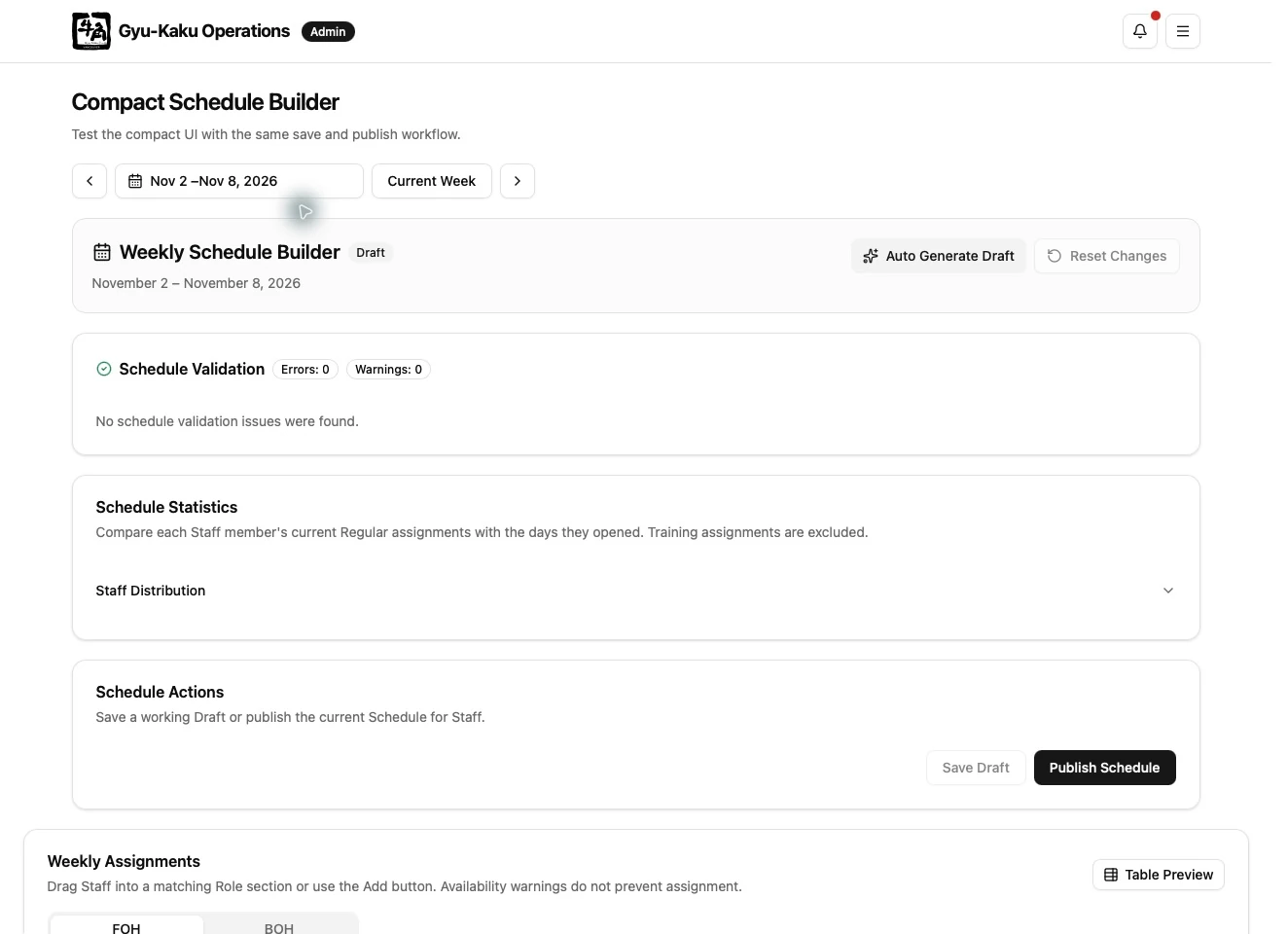
Draft and Published schedule
Section titled “Draft and Published schedule”Only one mutable Draft exists for a week. Published schedules are immutable snapshots. The first publish creates snapshot 1; every later published update creates another snapshot and makes it current.
If a published schedule exists without a Draft, opening the manager editor can create an editable Draft from the current published snapshot.
Blocking errors and warnings
Section titled “Blocking errors and warnings”Blocking errors must be corrected. Examples include an invalid date, missing role, duplicate assignment, overlapping shifts, or an invalid time/task combination.
The following warnings can be accepted only with explicit confirmation:
- Availability was not submitted.
- The Staff member reported the service as unavailable.
- The shift starts before the submitted available time.
- A manually selected position differs from the calculated position.
The confirmation and reason are stored with the assignment. Overlapping shifts and structural errors cannot be overridden.