Check Notifications
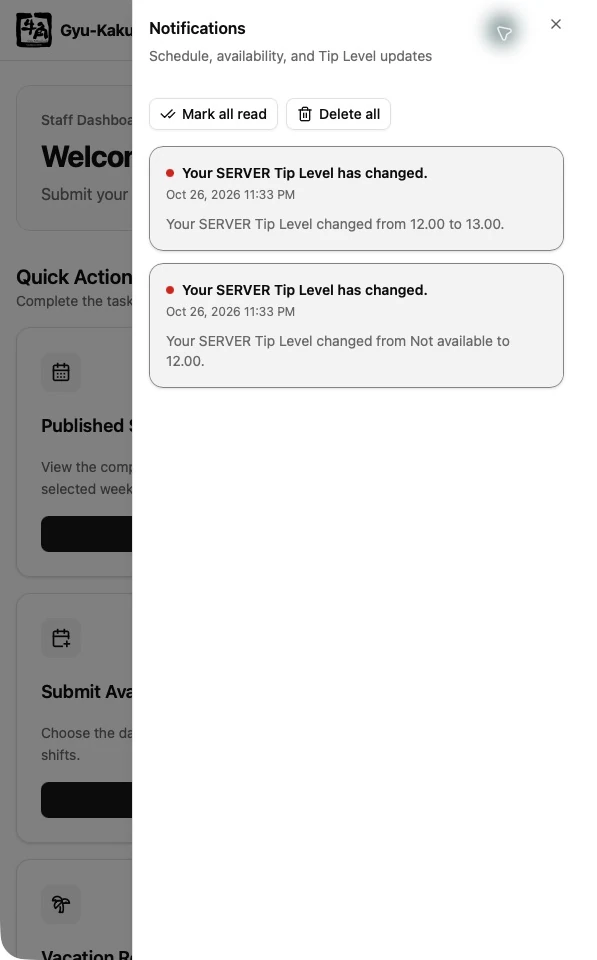
The bell in the application header opens Notifications. Staff, Managers, and Supervisors use the same inbox controls. A red dot means you have unread notifications.
Read an update
Section titled “Read an update”- Select the bell in the header.
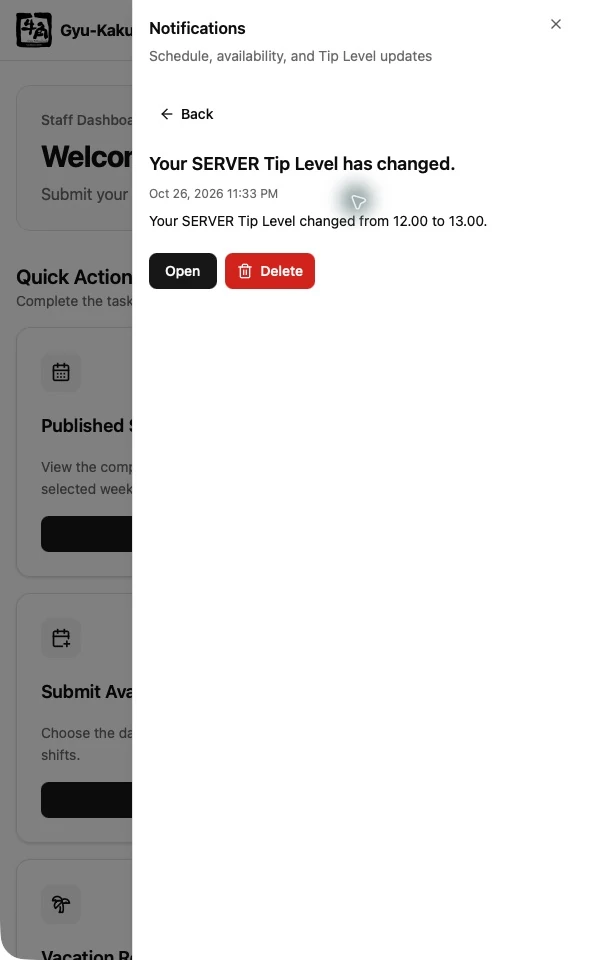
- Select a notification card to read the complete message. Opening a card marks that notification as read; opening the inbox alone does not.
- Select Open, when available, to go to the related page.
- Select Back to return to the notification list, or close the panel to continue your work.
Select Load more to see older notifications. The unread indicator refreshes about once a minute while the application is open, so a new alert may take a short time to appear. Close and reopen the panel to reload its list.
What notifications mean
Section titled “What notifications mean”| Notification | What to do |
|---|---|
| Schedule published or updated | Select Open to review the affected week. Recheck your shifts after an update, even if you already checked the original schedule. These notices go to all active staff, so they do not necessarily mean your own shifts changed. |
| Availability reminder | Open Submit Availability, check the requested dates, and submit or review your entries. |
| Tip Level changed | Open My Tip Level to review your current result. The notice is sent to the affected staff member. |
Automatic availability reminders are normally sent on Tuesday, Wednesday, and Thursday after 13:00 Vancouver time. They can also reach staff who have already submitted. A reminder alone does not mean your submission is missing: check the requested dates and your saved entries. Management can separately send reminders to staff with missing dates.
The reminder’s Open button takes you to the submission page; confirm or select the dates from the message yourself. Follow the submission page’s displayed deadline. If the reminder shows a different deadline, submit by the earlier displayed date and ask management to clarify if needed.
Mark as read or delete
Section titled “Mark as read or delete”- Mark all read marks every notification in your inbox as read, including older items you have not loaded.
- In a message, choose Delete and confirm to remove that notification.
- Delete all removes every notification from your inbox after confirmation, including older items you have not loaded.
These actions affect only your inbox. Deleting a notice does not change a schedule, availability submission, or Tip Level.