Availability Management
Open Management, then open Availability Management.
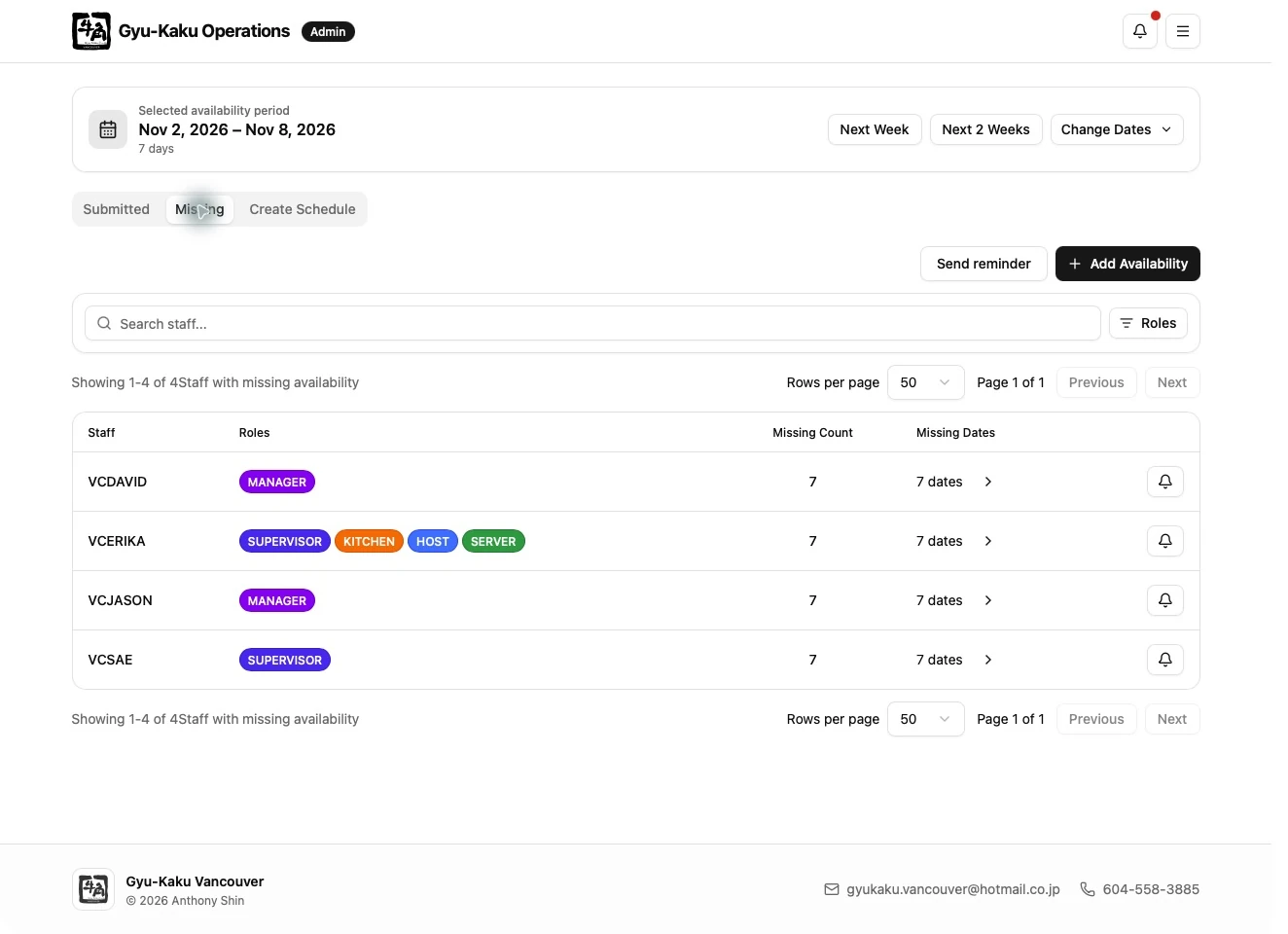
Review submitted and missing staff
Section titled “Review submitted and missing staff”- Select the required date range or cycle.
- Use the Submitted and Missing views.
- Filter by Staff name or role.
- Use pagination when the result contains several pages.
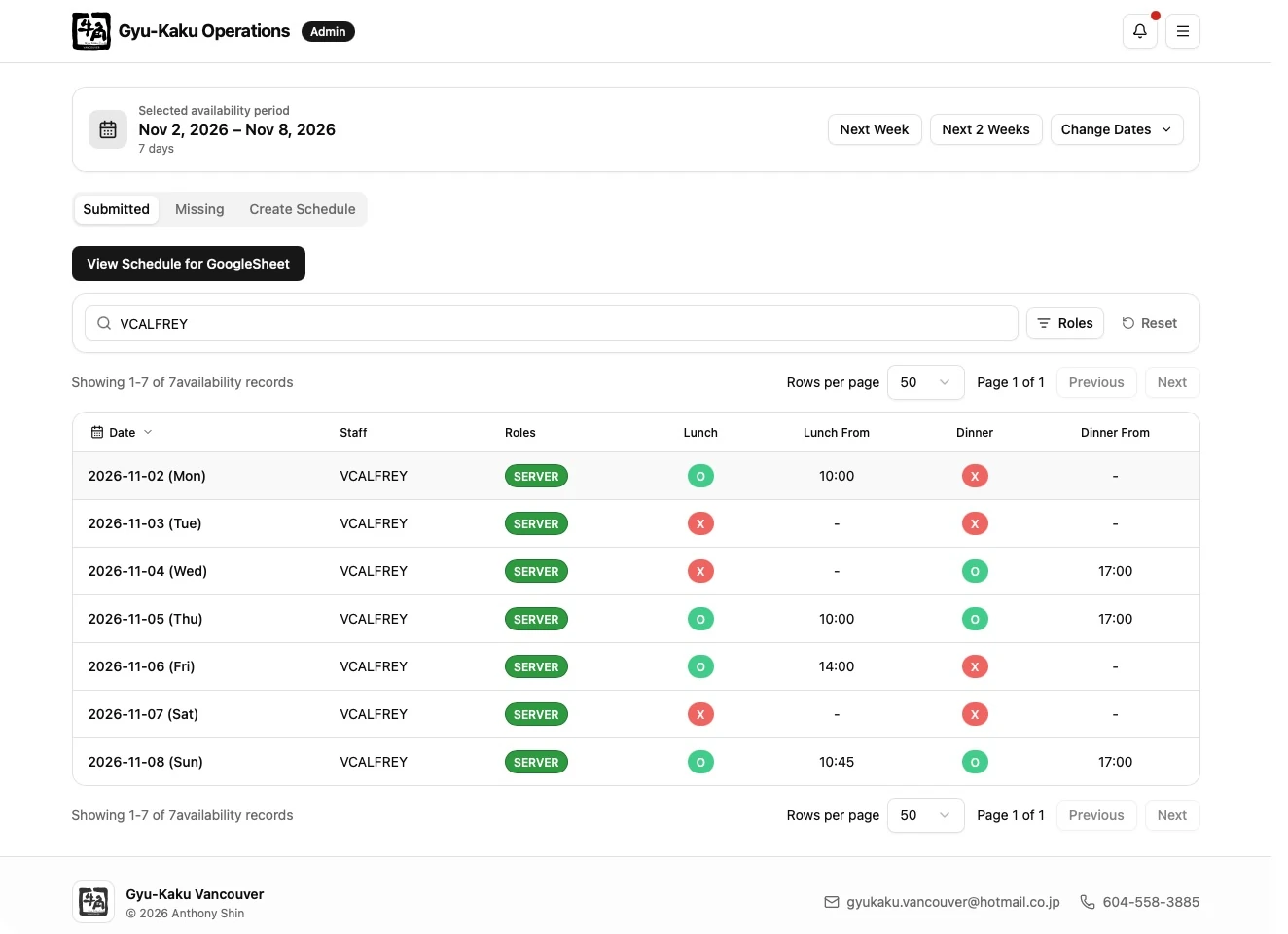
The management spreadsheet uses the following symbols:
| Symbol | Meaning |
|---|---|
- |
Missing submission |
X |
Unavailable |
O |
Available at the standard start |
O (HH:mm) |
Available from a later start time |
Correct submitted availability
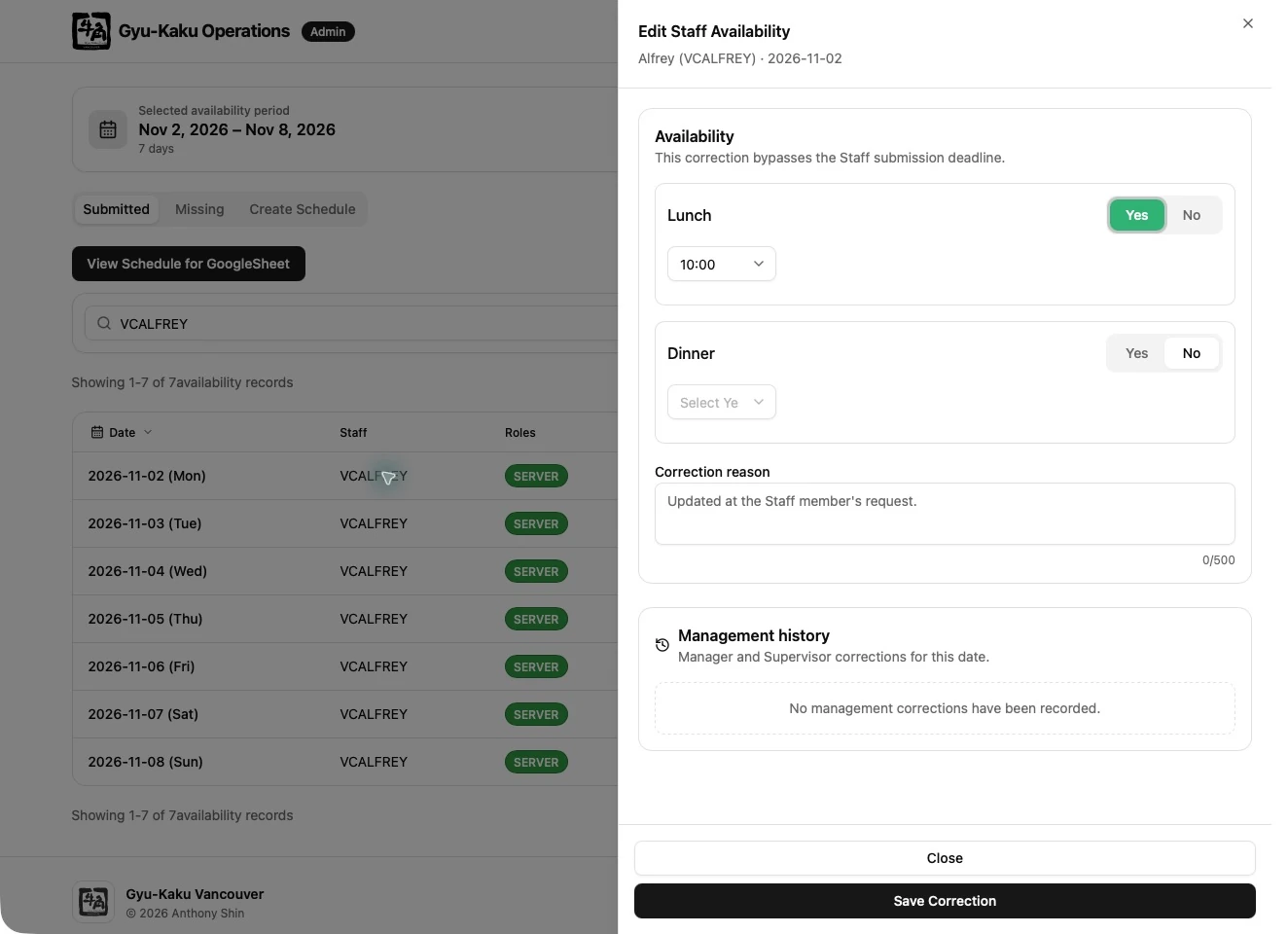
Section titled “Correct submitted availability”- Select the submitted entry.
- Review the Staff member and work date.
- Update Lunch and Dinner availability and start times.
- Enter a clear reason when appropriate.
- Save and confirm that the lists refresh.
Add a missing submission
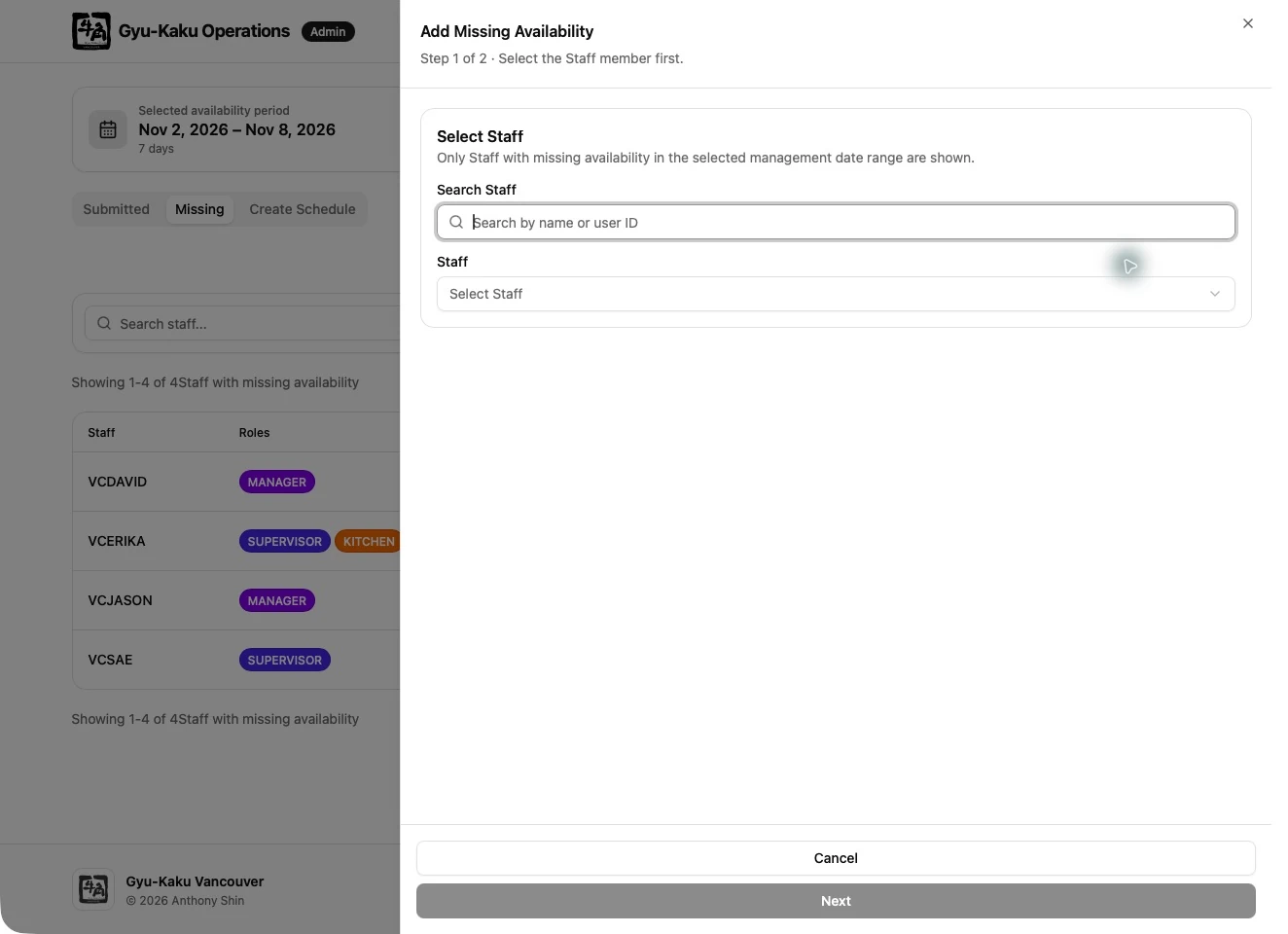
Section titled “Add a missing submission”- Open the Missing view.
- Select Add Availability for the Staff member.
- Enter the required dates and services.
- Save the new entries.
Management can correct closed staff cycles, but cannot create availability before the configured cycle anchor date.
Spreadsheet and TSV
Section titled “Spreadsheet and TSV”Open the spreadsheet view to review separate FOH and BOH sections. Use the TSV copy action when the table must be pasted into a spreadsheet application. Multi-role staff appear according to their primary role within each area.
Remind staff with missing availability
Section titled “Remind staff with missing availability”- Select the date range to check and open Missing.
- To contact one staff member, use the bell action in that person’s row (Send reminder).
- To contact everyone missing dates in the selected range, use Send reminder above the table.
- Check the success message. The bulk action reports the number of recipients.
The bulk action uses the selected date range, not the table’s name filter, role filter, or current page. Use the row action when you want to contact one person only. Staff receive the reminder in their application notification inbox, with an Open button for the submission page.
If a staff member submits before you send an individual reminder, they may no longer qualify. Refresh the list and check their entries. Sending a reminder does not submit availability or extend the deadline.