Sign In and Navigate
Sign in
Section titled “Sign in”- Open the Gyu-Kaku Vancouver operations system.
- Enter your Staff ID. Staff IDs are entered in uppercase automatically.
- Enter your password.
- Select Log in.
After a successful login, Staff members open the Staff Dashboard, while Managers and Supervisors open the Admin Dashboard.
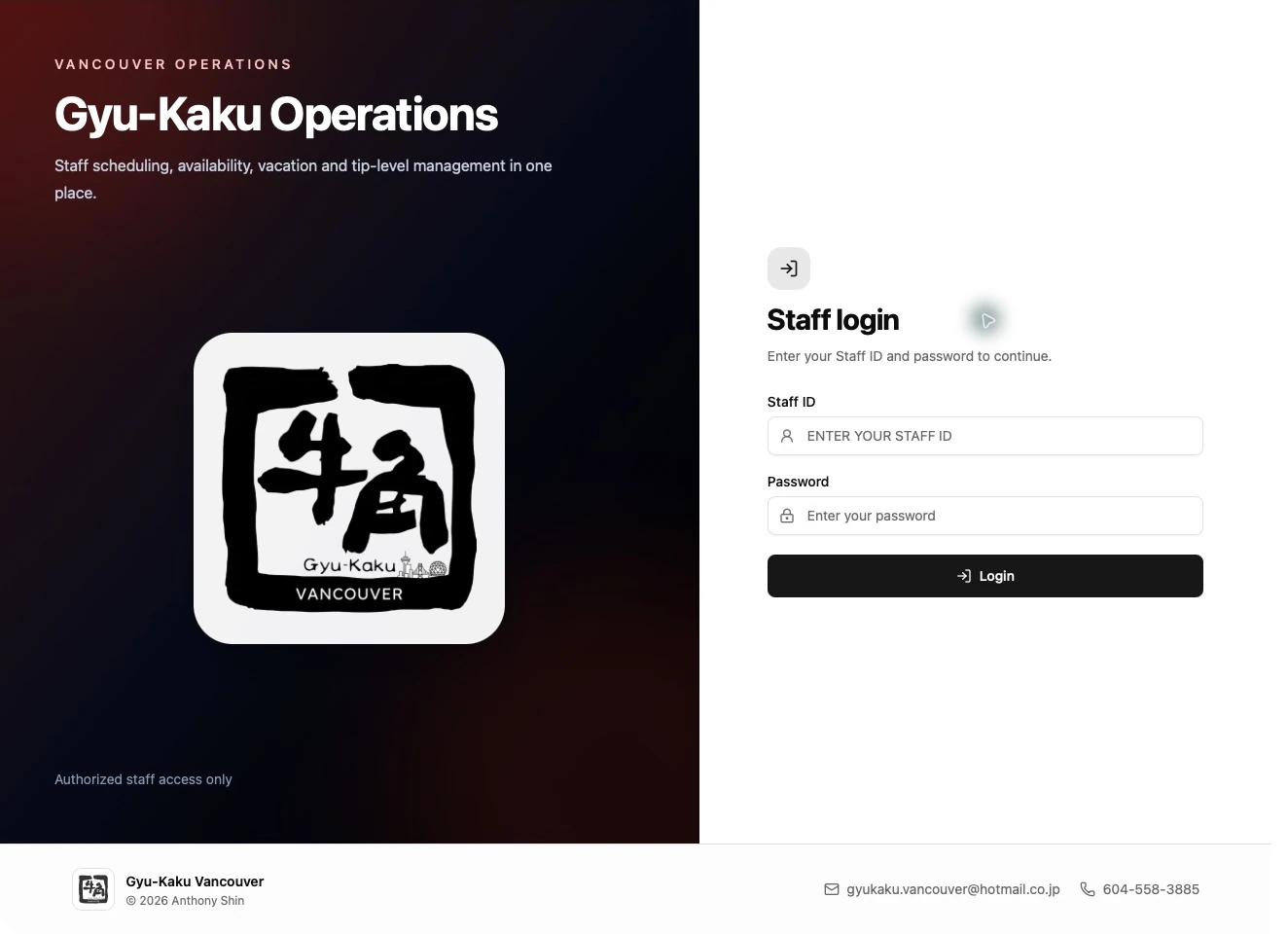
Login in a narrow window
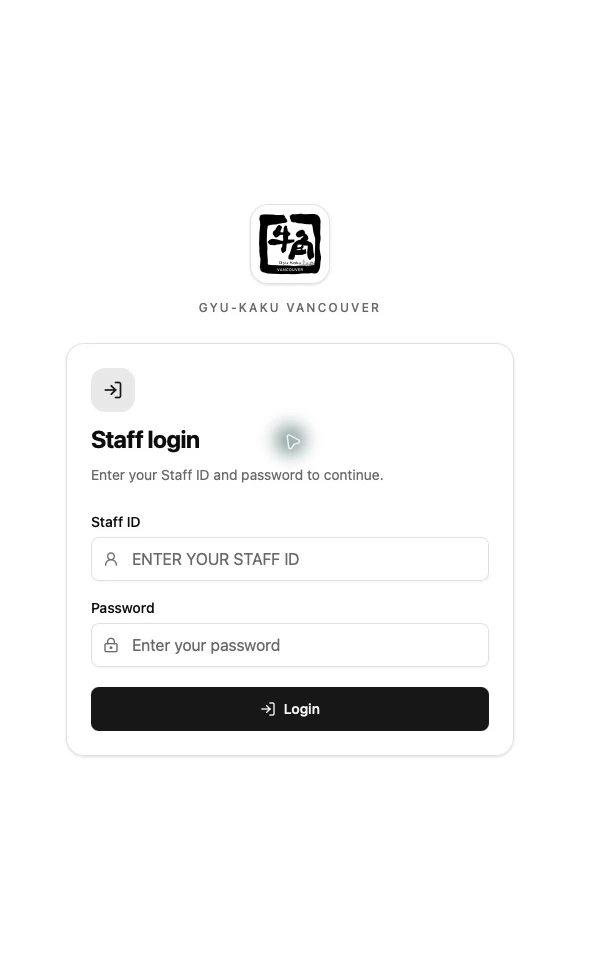
Staff Dashboard
Section titled “Staff Dashboard”Scheduling staff can see Published Schedule, Submit Availability, Vacation Request, and My Tip Level. A staff member with no scheduling role will not see Submit Availability or My Tip Level.
Admin Dashboard
Section titled “Admin Dashboard”Managers and Supervisors can open their personal tools plus the Management workspace. Those who also hold a scheduling role can submit their own availability and view their own Tip Level.
The System Settings card appears only when the account has a related designated permission. System Administrator workflows are outside the scope of this manual.
If sign-in fails
Section titled “If sign-in fails”- Confirm that the Staff ID is correct.
- Check Caps Lock and re-enter the password.
- Ask a Manager or Supervisor to confirm that the account is active.
- If necessary, a Manager or Supervisor can reset the account password from Staff Management.
Header notifications
Section titled “Header notifications”Select the bell in the header to check your inbox. A red dot indicates unread messages. See Check Notifications for reading, opening, and deleting alerts. The manual password unlocks this guide only; sign in to the operations system with your own Staff ID and account password.