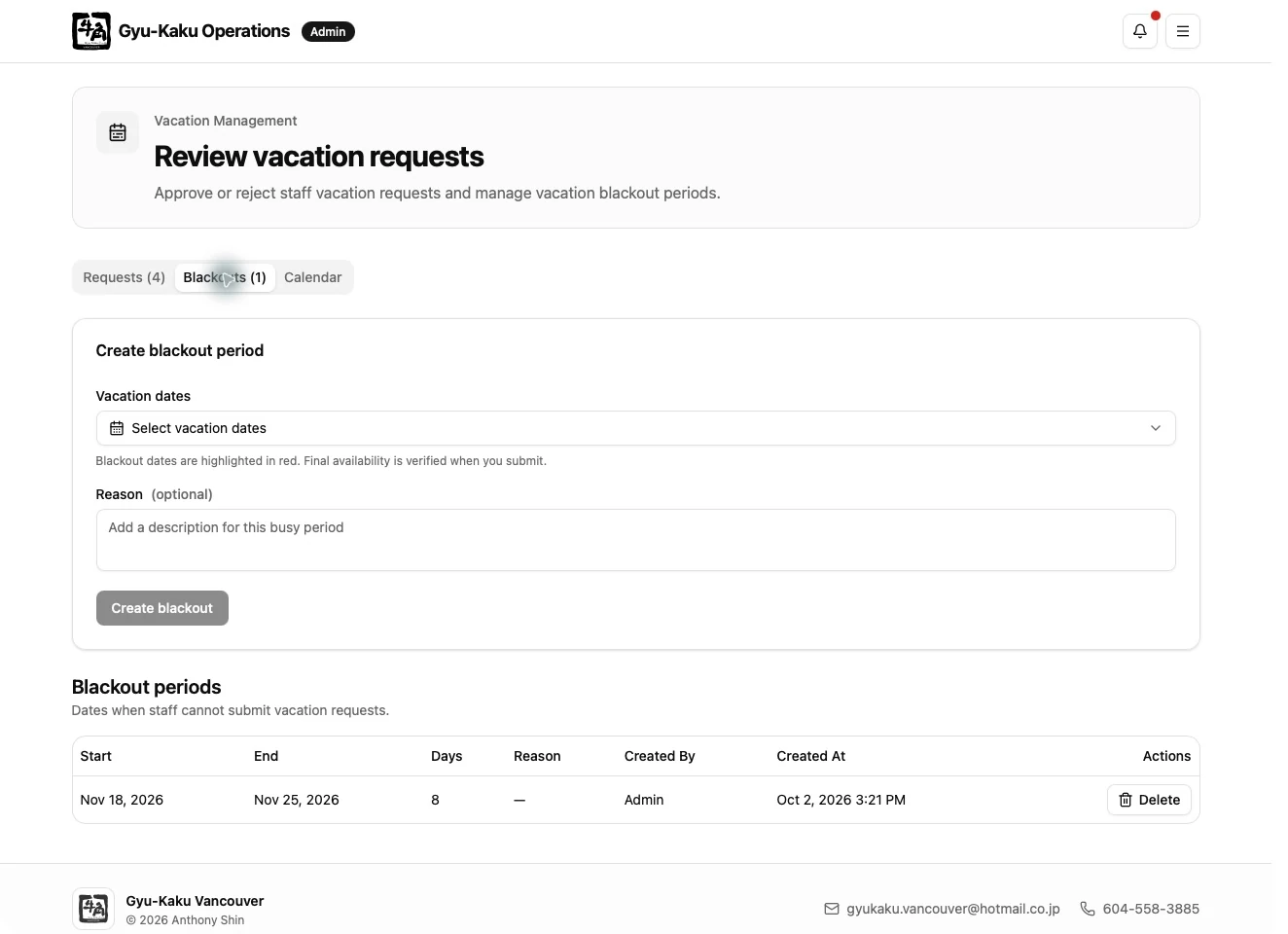
Vacation Management
Open Management, then select Vacation Management.
Review a request
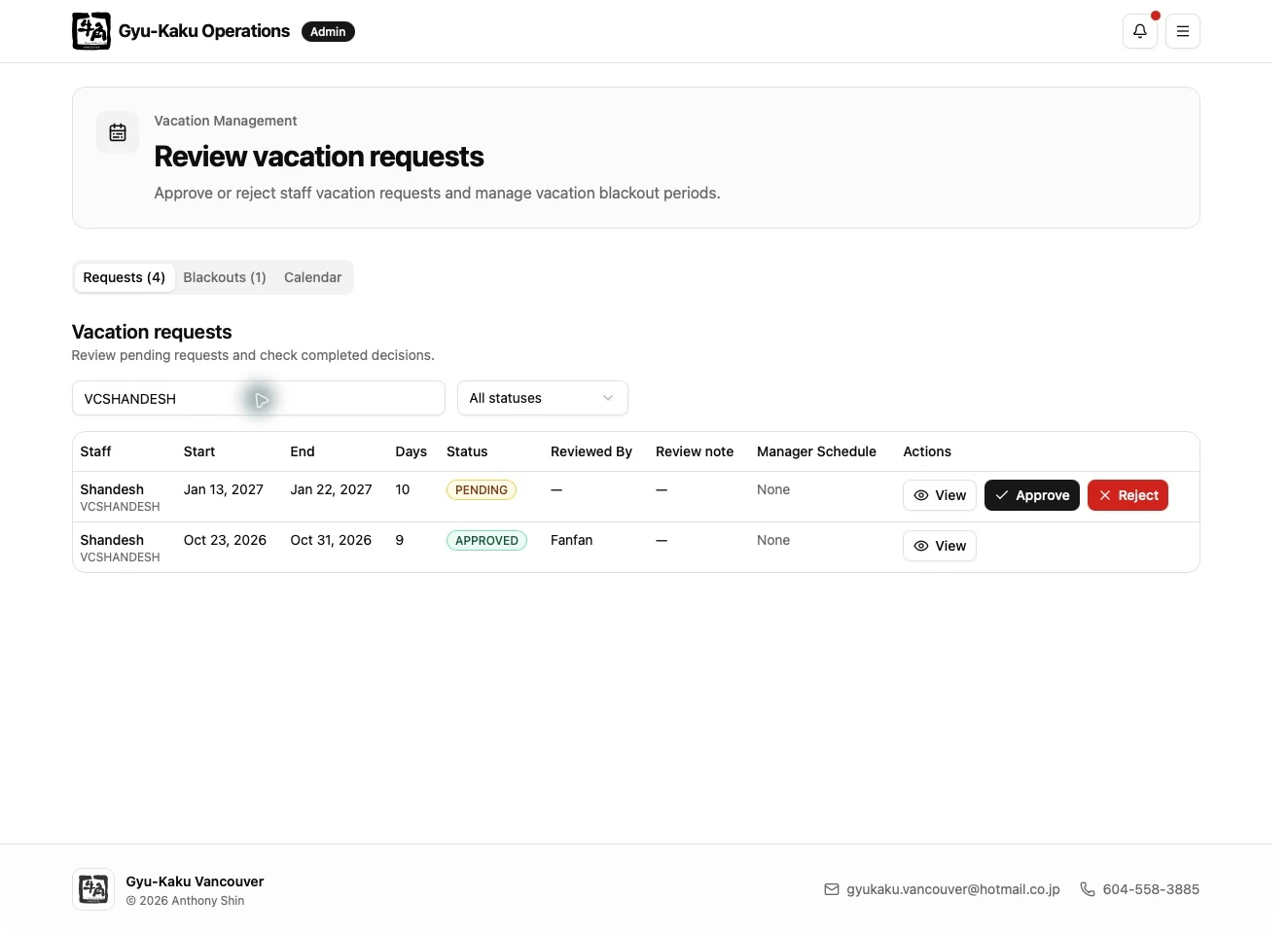
Section titled “Review a request”- Filter the request list by status when needed.
- Select a request to review the Staff member and full date range.
- Check for scheduling implications and existing Manager Schedule conflicts.
- Approve or reject the request.
- Add a useful review note when appropriate.
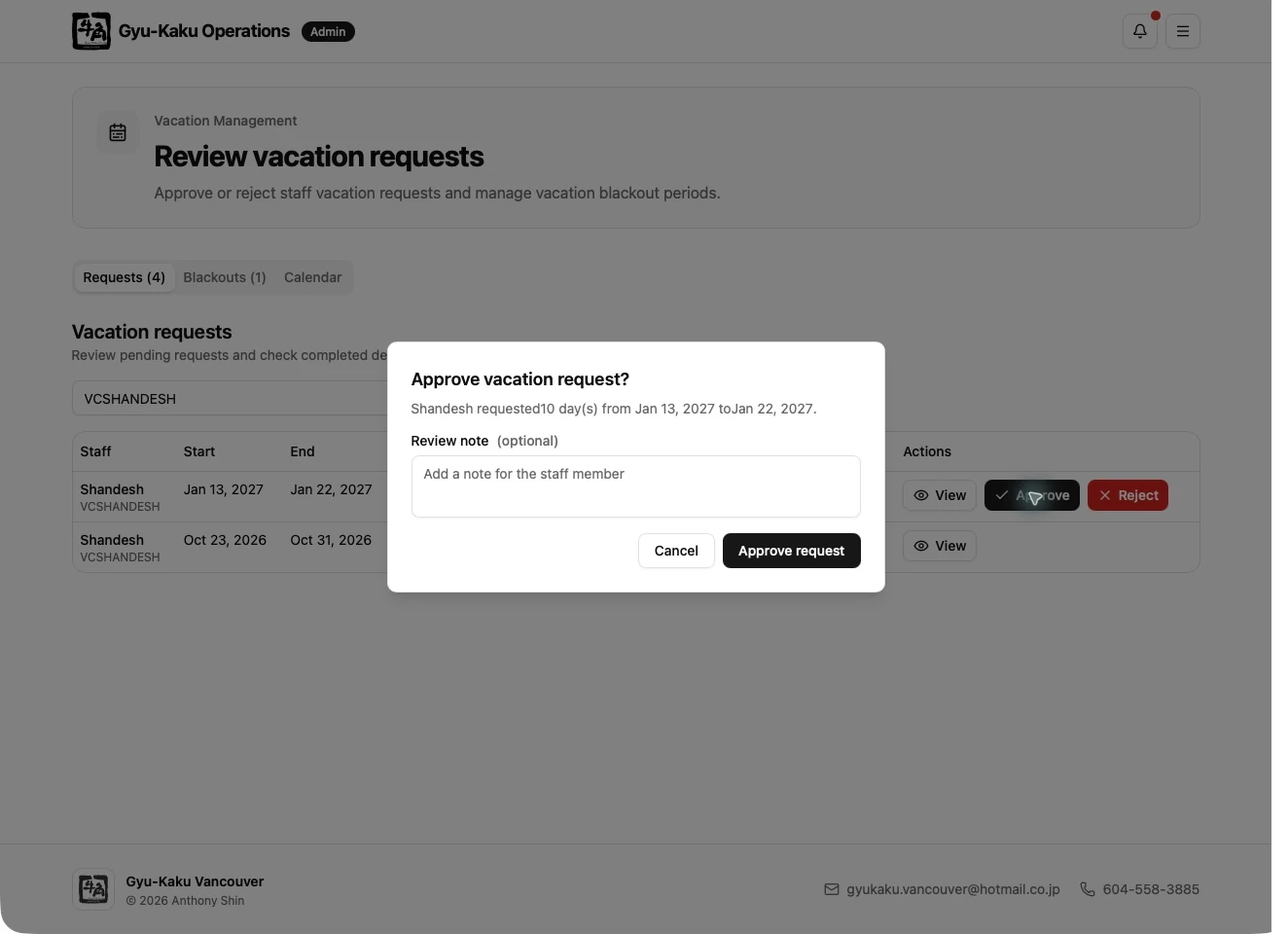
An approved request immediately becomes the vacation source used by schedule candidates and automatic schedule generation.
Manager Schedule conflicts
Section titled “Manager Schedule conflicts”When an approved vacation overlaps a Manager working shift, the system requires an explicit date-level confirmation during Manager Schedule import or manual editing. The confirmation is recorded. If the vacation approval or date range later changes, an older confirmation may be invalidated and must not be assumed to remain active.
Manage blackout periods
Section titled “Manage blackout periods”Use blackout periods for dates when vacation requests should not be accepted.
- Choose the start and end date.
- Enter a concise reason.
- Save the blackout.
Delete a blackout only when the restriction is no longer required. Staff can see blackout dates but cannot manage them.