Tip Level Management
Evaluate a staff member
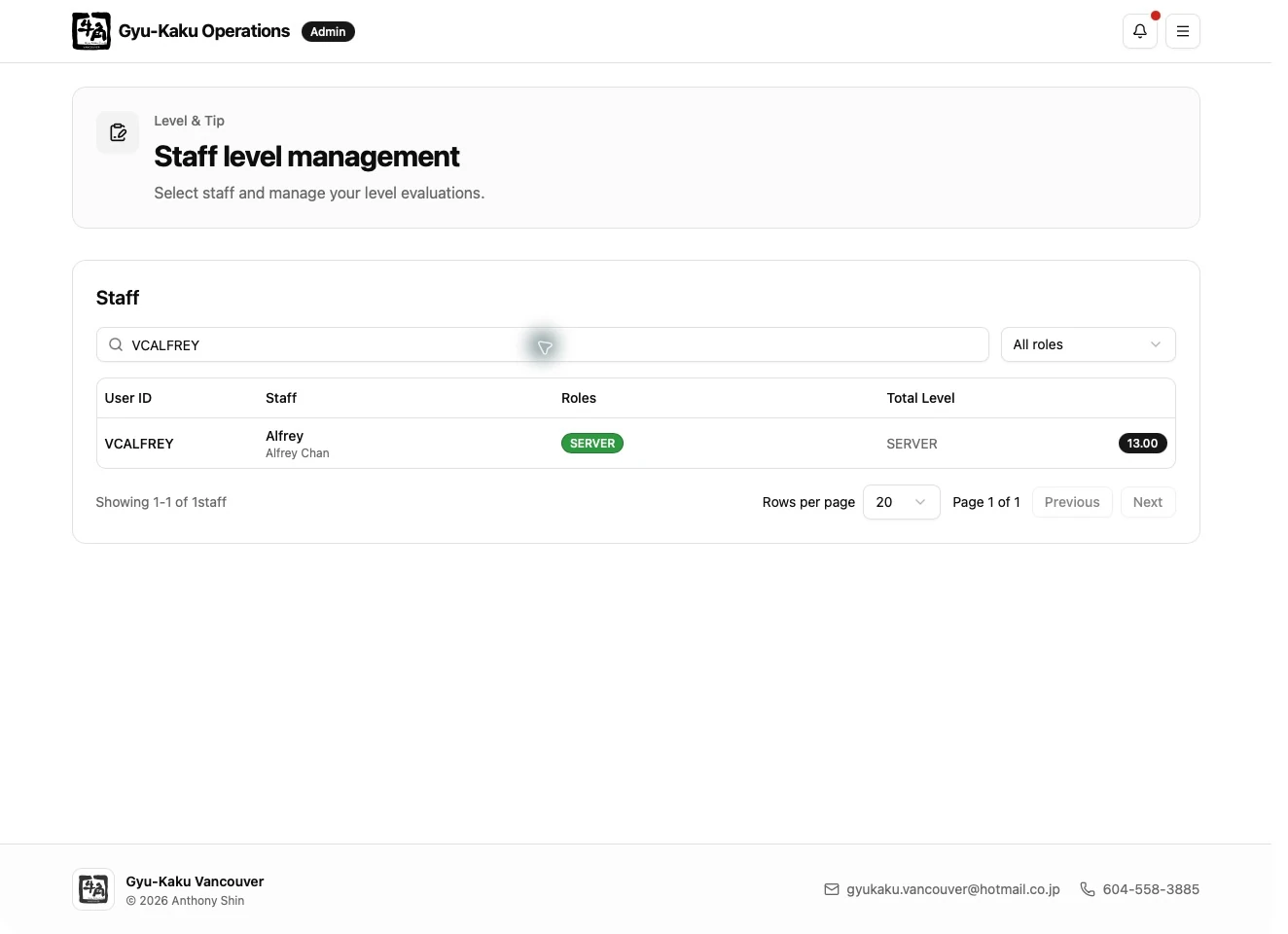
Section titled “Evaluate a staff member”- Open Tip Level Management.
- Find and select the Staff member.
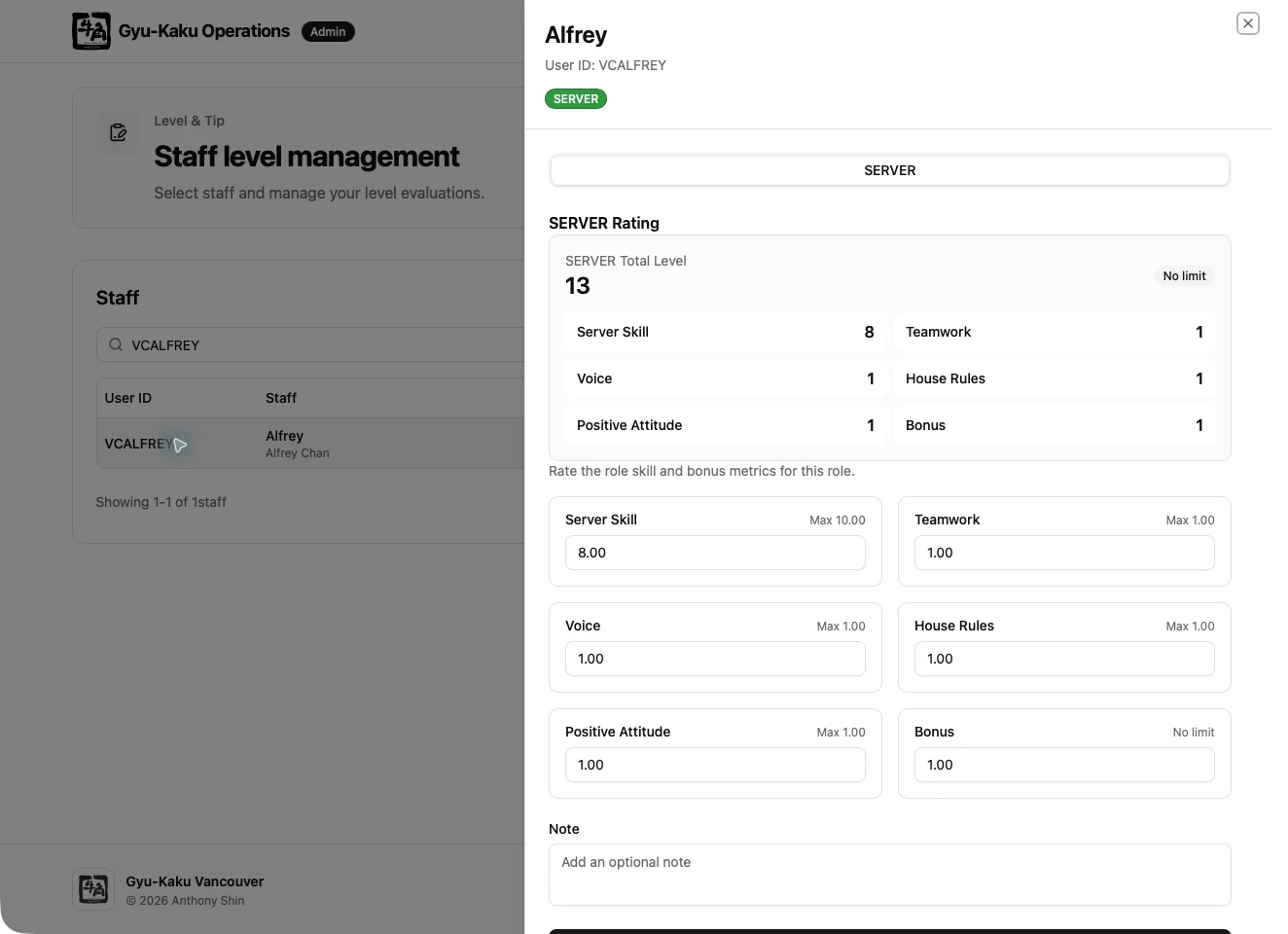
- Choose the scheduling role being evaluated.
- Review the evaluation fields shown for the selected role.
- Enter the ratings using the input controls and limits shown on the page.
- Review the complete change set and save.
After saving, review the updated result and history. Changes to the resulting Tip Level or evaluation completeness send an in-app notification to the affected staff member; not every rating edit creates an alert.
If required metrics are missing, the snapshot may be incomplete and have no final level. Do not enter a placeholder score merely to make an evaluation complete.
Permission and metric administration
Section titled “Permission and metric administration”Granting Level Editor access and changing metric definitions are restricted administration tasks and are not covered by this manual. Follow the designated-access request process instead.